


Download PDFConverter – Fast, Secure PDF to PowerPoint Conversion
Overview
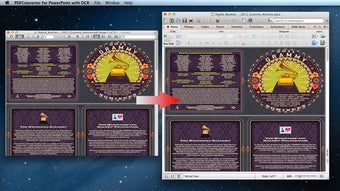
PDFConverter is a purpose‑built desktop utility that turns PDF documents into fully editable PowerPoint presentations in seconds. Powered by an integrated OCR (optical character recognition) engine, the software can read both native PDFs and scanned image‑based PDFs, reproducing text, tables, images, layouts, and even hyperlinks with remarkable accuracy. Whether you need to remix a conference handout, repurpose a product catalog, or simply extract data from a legal brief, PDFConverter removes the tedious copy‑and‑paste routine and delivers a ready‑to‑edit PPT file that mirrors the original design.
The tool supports more than 49 languages—including English, French, Chinese, Russian, and Portuguese—so users around the globe can convert multilingual PDFs without losing meaning. Its lightweight, standalone architecture means you don’t need Adobe Acrobat or any other third‑party suite; a single installer handles everything. PDFConverter also lets you save conversion projects, allowing you to revisit and fine‑tune the output later.
In short, the program blends speed, accuracy, and convenience, making it a valuable addition to any professional’s toolkit, from marketers and educators to engineers and legal analysts.
Key Features, Compatibility, and Pros & Cons
Feature Highlights
- High‑fidelity PDF‑to‑PPT conversion preserving original fonts, colors, and layouts.
- Built‑in OCR engine capable of recognizing text in scanned PDFs and images.
- Support for 49+ languages, enabling multilingual document conversion.
- Batch processing for converting multiple PDFs at once, saving time on large projects.
- Automatic detection of tables, bullet points, and master slide layouts.
- Conversion of image formats (JPG, PNG, GIF, BMP, TIFF) directly into editable PowerPoint slides.
- Option to manually select OCR zones for improved accuracy on complex pages.
- Project saving feature to store conversion settings for future edits.
- Standalone Windows executable – no Adobe Acrobat required.
- Secure processing with local file handling; no cloud upload, protecting confidential data.
Operating System Compatibility
PDFConverter is designed exclusively for Windows 10, Windows 11, and Windows 8.1 (64‑bit). The installer includes all necessary libraries, so users do not need to install additional runtimes such as .NET Framework or Visual C++ redistributables. While a macOS version is planned for future releases, the current Windows‑only focus ensures optimal performance and full access to the OCR engine.
Pros & Cons
Pros
- Exceptional accuracy for both native and scanned PDFs.
- Fast batch conversion speeds up large‑scale projects.
- Intuitive UI that requires minimal training.
- No reliance on internet connectivity; all processing stays on the local machine.
- Extensive language support for global users.
Cons
- Only available for Windows at the moment.
- Advanced OCR tuning options are limited to manual selection.
- Pricing is a one‑time license; no free tier beyond a 14‑day trial.
- Large PDFs (>200 MB) may require additional memory for optimal performance.
- No native integration with cloud storage platforms (e.g., OneDrive, Google Drive).
Installation & Usage Instructions
Step‑by‑Step Installation
1. Download the installer: Click the “Download PDFConverter” button on the official website. The file size is approximately 45 MB, making it quick to retrieve even on slower connections.
2. Run the setup: Double‑click the PDFConverter_Setup.exe file. Windows will prompt you to confirm the installation; click “Yes” to continue.
3. Accept the license agreement: Review the terms and click “I Agree”. The wizard then asks you to choose an installation folder; the default path (C:\Program Files\PDFConverter) works for most users.
4. Complete the installation: Click “Install” and wait for the progress bar to finish. When the process ends, you can launch the application immediately by checking “Launch PDFConverter”.
Basic Conversion Workflow
• Open a PDF: Drag and drop a PDF file onto the main window or use the “Add File” button to browse your folders.
• Select output options: Choose “PowerPoint (PPTX)” as the target format. If the PDF contains scanned pages, the OCR toggle will automatically activate. For finer control, click “Advanced OCR” and manually outline text blocks or tables.
• Set language preferences: In the language dropdown, select the primary language of the document. PDFConverter will use the appropriate OCR dictionary to improve recognition rates.
• Start conversion: Hit the “Convert” button. Progress is displayed in a real‑time bar, and you can view a preview of each slide as it is generated.
• Save and edit: Once conversion finishes, the PPTX file is saved to the destination folder you specified. Open it directly in Microsoft PowerPoint to make any final edits, such as adjusting fonts or repositioning images.
Tips for Optimal Results
- For PDFs with complex tables, enable the “Preserve Table Structure” option to maintain column alignment.
- When converting multilingual documents, split the file by language sections and run separate conversions to reduce OCR errors.
- Use the “Project Save” feature if you need to revisit the conversion later; this stores the OCR mappings and layout choices.
- Close other heavy applications during batch conversions to allocate more RAM to PDFConverter.
Frequently Asked Questions
Can PDFConverter handle password‑protected PDFs?
Yes. When you load a protected PDF, the software prompts you to enter the password. After authentication, conversion proceeds as normal.
Is there a free trial available?
A fully functional 14‑day trial is offered on the official website. The trial allows unlimited conversions but adds a subtle watermark to the output PPT files.
How accurate is the OCR for non‑Latin scripts?
PDFConverter supports Cyrillic, Greek, Chinese (Simplified & Traditional), Japanese, Korean, and several other scripts. Accuracy typically exceeds 95% when the source scan is at 300 dpi or higher.
Can I convert PDFs directly to other Office formats (e.g., Word or Excel)?
PDFConverter focuses on PDF‑to‑PowerPoint conversion. For Word or Excel, Enolsoft offers separate utilities in the same product family.
Does the software store my files in the cloud?
No. All processing is performed locally on your computer. Files never leave your device unless you choose to upload them manually.
Conclusion & Call to Action
PDFConverter delivers a seamless bridge between static PDF content and dynamic PowerPoint presentations. Its OCR core, multilingual support, and batch‑processing capabilities make it a standout tool for professionals who need to repurpose documents quickly without sacrificing layout fidelity. While the current Windows‑only release may limit macOS users, the speed, security (local processing only), and intuitive interface provide strong justification for the one‑time purchase price. If you frequently transform reports, brochures, or scanned lecture notes into editable slides, PDFConverter can cut hours of manual re‑creation from your workflow.
Ready to experience hassle‑free PDF‑to‑PPT conversion? Download PDFConverter now, start your free trial, and see how quickly you can turn any PDF into a polished PowerPoint deck.